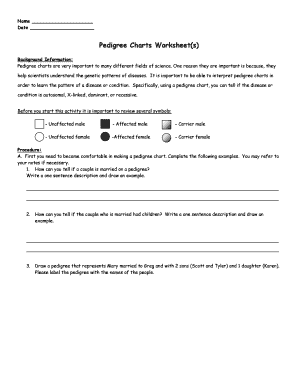
Get Pedigree Charts Worksheet
How it works
-

Open form follow the instructions
-

Easily sign the form with your finger
-

Send filled & signed form or save
How to fill out the Pedigree Charts Worksheet online
The Pedigree Charts Worksheet is a vital tool for understanding genetic patterns and familial relationships. This guide will provide clear instructions on how to complete the form online effectively, ensuring you produce accurate and informative pedigree charts.
Follow the steps to complete your Pedigree Charts Worksheet online
- Click ‘Get Form’ button to access the Pedigree Charts Worksheet and open it in the editor.
- Begin by filling in your name and the date at the top of the form to personalize the worksheet. This ensures your work is properly attributed.
- Review the background information provided regarding the importance of pedigree charts in scientific fields and familiarize yourself with the symbols used in pedigree charts before proceeding.
- Complete the initial examples by answering the questions about married couples and children in the provided spaces, ensuring you both write a description and draw corresponding examples.
- Draw the required pedigree charts according to the prompts, labeling each chart with the names provided in the scenarios. Make sure to use clear lines for connections and adhere to the symbolism for affected/carrier individuals correctly.
- Analyze the pedigree charts you have drawn and assign them as autosomal, X-linked, recessive, or dominant. Provide explanations for your classification in the spaces designated within the worksheet.
- Once you have completed all sections of the form, review your work carefully for any errors or omissions. Making sure all fields are filled accurately is essential.
- After verifying your information, you can save your changes, download the completed worksheet, print it, or share it as necessary.
Start filling out your Pedigree Charts Worksheet online today to enhance your understanding of genetic relationships.
0:02 2:33 How to Make a Family Tree in Microsoft Word 2007 - YouTube YouTube Start of suggested clip End of suggested clip The box that hangs off to the side of it represents the spouse. So for that box you would type inMoreThe box that hangs off to the side of it represents the spouse. So for that box you would type in your spouse's name and then you have the names of your. Children.
Industry-leading security and compliance
-
In businnes since 199725+ years providing professional legal documents.
-
Accredited businessGuarantees that a business meets BBB accreditation standards in the US and Canada.
-
Secured by BraintreeValidated Level 1 PCI DSS compliant payment gateway that accepts most major credit and debit card brands from across the globe.